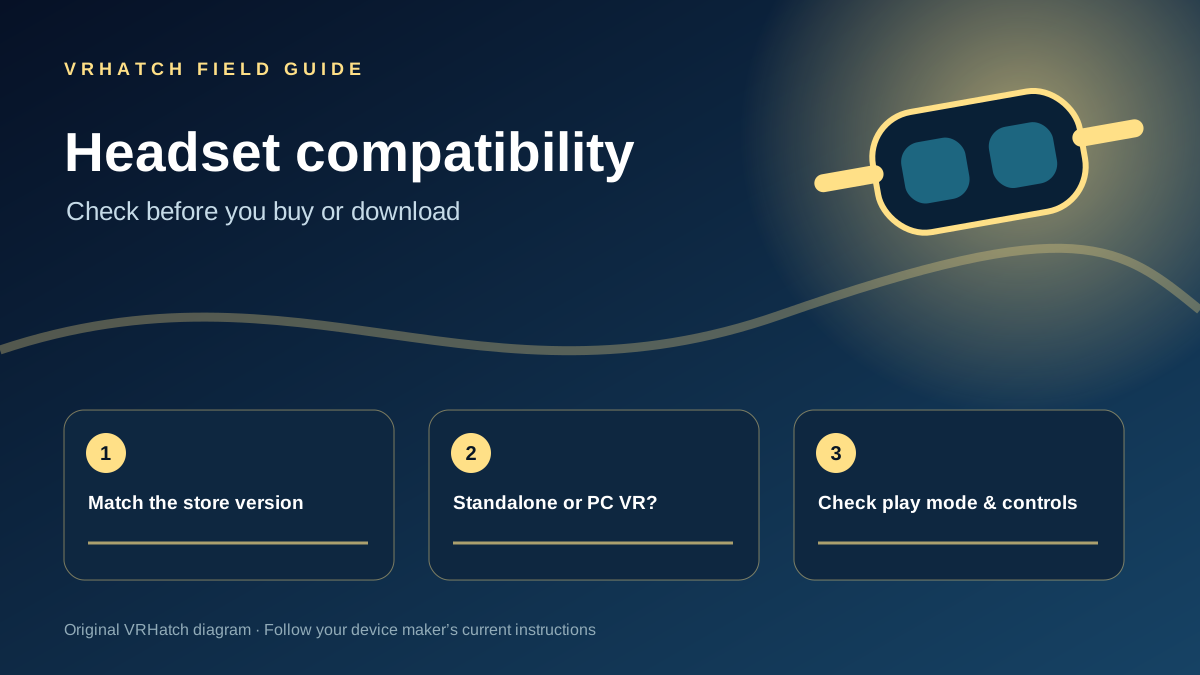
Match the exact version
A title can appear on several stores while offering different device builds. Start on the official product page or store listing for your headset. Check the supported headset, controller type and play mode, then confirm the version you are about to open or purchase.
Separate standalone from PC VR
A Quest headset can be used for standalone experiences and, with the right setup, PC VR. Those are different purchase and hardware paths. If the listing is on a PC VR store, check its computer requirements and any streaming or cable setup before assuming it will run natively on your headset. Steam support advises checking each title’s requirements and VR support labels.
Check the practical details
Look for seated, standing or room-scale play, controller and hand-tracking requirements, language support, account requirements and the current price. If a directory field says “Not verified,” use the official destination to confirm it rather than treating an empty field as support.
Reference: Steam Support — VR compatibility guidance ↗. Requirements change by title and platform.
Last editorial update: 2026-11-06. Product details can change; check the linked source before making a purchase.